
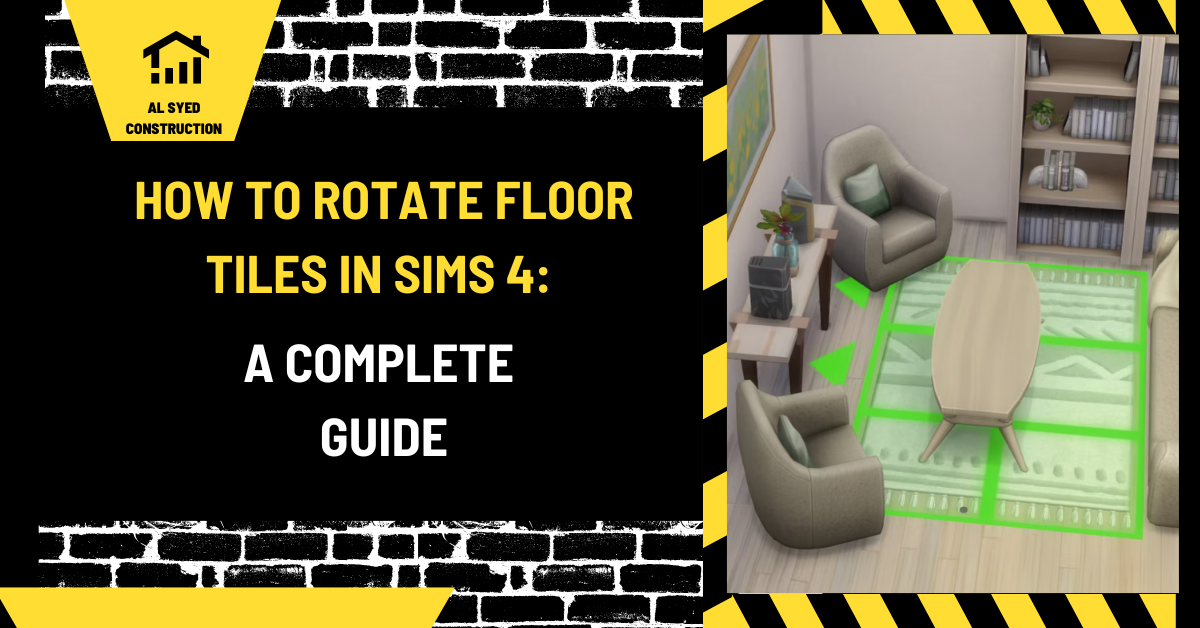
How to Rotate Floor Tiles in The Sims 4
How floor tile rotation works in build mode
Flooring in The Sims 4 is placed as a surface finish, so rotating a tile pattern is different from rotating a chair or cabinet. The exact control depends on whether you are placing a whole-room floor, a floor tile, or a decorative object, and it can also vary by platform, keyboard layout, and game update. Start by entering Build Mode, selecting the flooring category, and choosing the pattern you want. Place a small test area first. If the pattern has a visible grain, border, or repeating motif, the test makes its direction easy to see before you cover a large room. This simple check prevents wasted clicks and lets you judge the tile against the room’s walls, doors, and furniture.
Try the controls in a small test area
Select one floor tile or a small floor section and use the rotation prompts shown in the game interface. On many computer setups, the comma and period keys rotate selected objects, while floor pattern controls may use the less-than and greater-than keys or a separate floor-tile action. Do not assume a control from an older guide works on every keyboard. Check the on-screen hints, test one change, and look at the result before repeating it. If the pattern turns the wrong way, use the opposite control once. On consoles, use the control hints displayed for the selected tool. A short test on an empty room is more reliable than repeating a guessed shortcut over a finished build.
Understand single-tile, room, and pattern behavior
A room fill can behave differently from a single tile. When you apply flooring to a whole room, the game may align the texture according to the room geometry or the material’s default orientation. A single tile gives more control over local direction, but it may require careful placement and can create a patchwork if rotated inconsistently. Some decorative floor designs are repeating textures rather than individual pieces, so rotating them changes the visual grain but not a grout layout. Before choosing a method, decide what you are trying to change: the direction of wood-like grain, the direction of rectangular tile, a border, or the overall repeat. Matching the operation to the pattern saves time and produces a more intentional result.
Create a consistent tile direction
For a long, narrow room, a common design choice is to run rectangular tiles along the room’s longest visual axis. This can make the floor feel calmer and reduce the number of apparent cross-joints. A square room may benefit from aligning the pattern with the entry wall or the dominant furniture line. In a hallway, check how the pattern reads from the main entrance and at turns. In an open plan, maintain a deliberate orientation across connected spaces unless a transition is part of the design. These are visual choices rather than construction rules, but the same planning logic used in real tile layouts can help a virtual room feel coherent. For real-life layouts, see the site’s guide to running-bond tile patterns.
Use rotation to build a repeat or border
A repeating motif can look different when its direction changes, even if the tile itself is unchanged. Lay a small sample with two or four orientations and compare the effect from the normal camera angle. A border can emphasize a doorway or frame a dining area, but too many changes may make a small room feel busy. If you are building a checkerboard, basketweave, or offset pattern, keep a simple map of which orientation goes in each row. For a large virtual floor, build the design in sections and inspect the seams at normal zoom. The site’s floor tile pattern calculator and subway tile calculator are intended for real layout planning; they can still help you think through repeats and coverage concepts.
Troubleshoot rotation that appears not to work
If the tile does not rotate, confirm that the floor tile or pattern is selected rather than the room, wall, or an object. Click the target again, check for a selection outline, and test the control in an unoccupied room. A keyboard layout can map symbols differently, especially when a shortcut uses punctuation keys. The game may also distinguish between rotating an object and changing a floor pattern. Pause briefly after each command and watch the selected surface. If the control remains unclear, consult the current in-game help or control legend for your platform and version. Restarting the game is rarely the first fix; first verify selection, active tool, and whether the chosen material actually supports a directional change.
Improve the room before committing the finish
Color and direction should be judged with the full room in view. A high-contrast grout-like grid can dominate a small bathroom, while a subtle texture may disappear at a distance. Compare the floor with wall color, cabinets, and lighting. Place the most important furniture temporarily, then check whether the pattern competes with its shape. If the room connects to another space, test how the two finishes meet at the doorway. You can also use a contrasting strip to signal a threshold, but avoid using too many unrelated directions. Virtual design gives you a low-cost way to explore options. Save a version before a major change so you can compare the rotated layout with the original instead of relying on memory.
A practical build-mode workflow
Use this sequence for a predictable result: select a room or a small floor area, choose the tile, place a test patch, inspect the control hint, rotate one unit, and compare it from the doorway and room center. Once the direction is right, extend the finish in a controlled sequence. For a pattern built from individual pieces, complete one row at a time and check that the repeat has not drifted. For a room fill, apply the finish and inspect corners, thresholds, and areas hidden by furniture. Take a screenshot if you are comparing alternatives. If a later game update changes the interface, repeat the small test instead of relying on a remembered shortcut. This workflow is useful whether you are making a simple apartment or a detailed custom build.
Frequently asked questions
Can every floor texture be rotated? Not necessarily. Some patterns have no clear direction, and some floor tools treat a whole-room fill differently from a single tile. Test the material you selected.
Why does my keyboard shortcut do something else? Keyboard layouts and platform mappings vary. Use the control hint shown in your game and test one action at a time.
Can I rotate a whole room’s flooring? Often the easiest route is to reapply the selected pattern and inspect its default alignment; individual tile placement may be needed for a custom orientation.
How do I make a realistic tile floor? Keep the direction consistent, use a pattern scale that suits the room, and inspect transitions from the camera angle players will see most often.
Final checklist
Before finishing, confirm the selected surface, verify the current control hint, and rotate a small sample rather than guessing across the full room. Review tile direction from the main entrance, check the repeat at edges, and make sure the floor supports the room’s furniture and color palette. Save a copy before a large redesign so you can compare versions. The key is to separate object rotation from floor-pattern editing and to test controls on the platform you are using. Once you understand that distinction, tile rotation becomes a quick design adjustment rather than a frustrating trial-and-error process.
Choose a pattern that reads at game scale
Small grout lines and fine texture can disappear when you zoom out, while oversized patterns may make a compact room feel crowded. Test the floor at the camera distance you expect to use during play, not only in a close build view. A tile pattern with a strong direction can guide the eye toward a focal wall or make a long room appear more orderly. A busy motif may work as a small accent but can compete with furniture when repeated everywhere. If you are undecided, compare two versions with identical walls and lighting so the rotation is the only variable. This makes it easier to judge whether the change improves the room or simply makes the surface different.
Avoid visual seams at room boundaries
When a floor continues through adjoining rooms, inspect where the edges meet. A rotated tile field can appear to change direction abruptly at a doorway, even when the material is identical. That transition may be intentional, such as a visual threshold, or it may look accidental. If the game allows separate room finishes, align both rooms deliberately or use a border to make the change feel planned. Check corners and narrow corridors because repeated patterns can reveal small mismatches there. In a build that uses several floor materials, limit the number of competing directions. A consistent visual rule helps players understand the layout and makes the tile choice feel connected to the room’s function.
Make a before-and-after comparison
A simple comparison prevents endless adjustments. Duplicate or save the room, then rotate the sample in one version while keeping the furniture, wall finishes, and lighting unchanged. Compare the two screenshots at the same zoom and from the same camera angle. Look for the direction of movement, how the pattern frames the entry, and whether the floor draws attention away from the room’s main feature. If the difference is subtle, the default orientation may already be effective. The same decision method is useful in real remodeling: order a sample, test the layout, and inspect it under the intended lighting before installation. The game is a visual aid, not a substitute for product or installation instructions.


Leave a Reply
Want to join the discussion?Feel free to contribute!